
Everest by iqlab
Gaming floor · Module 03

Table Manager

Coordinate the table-floor views for player operations, table activity and game results.

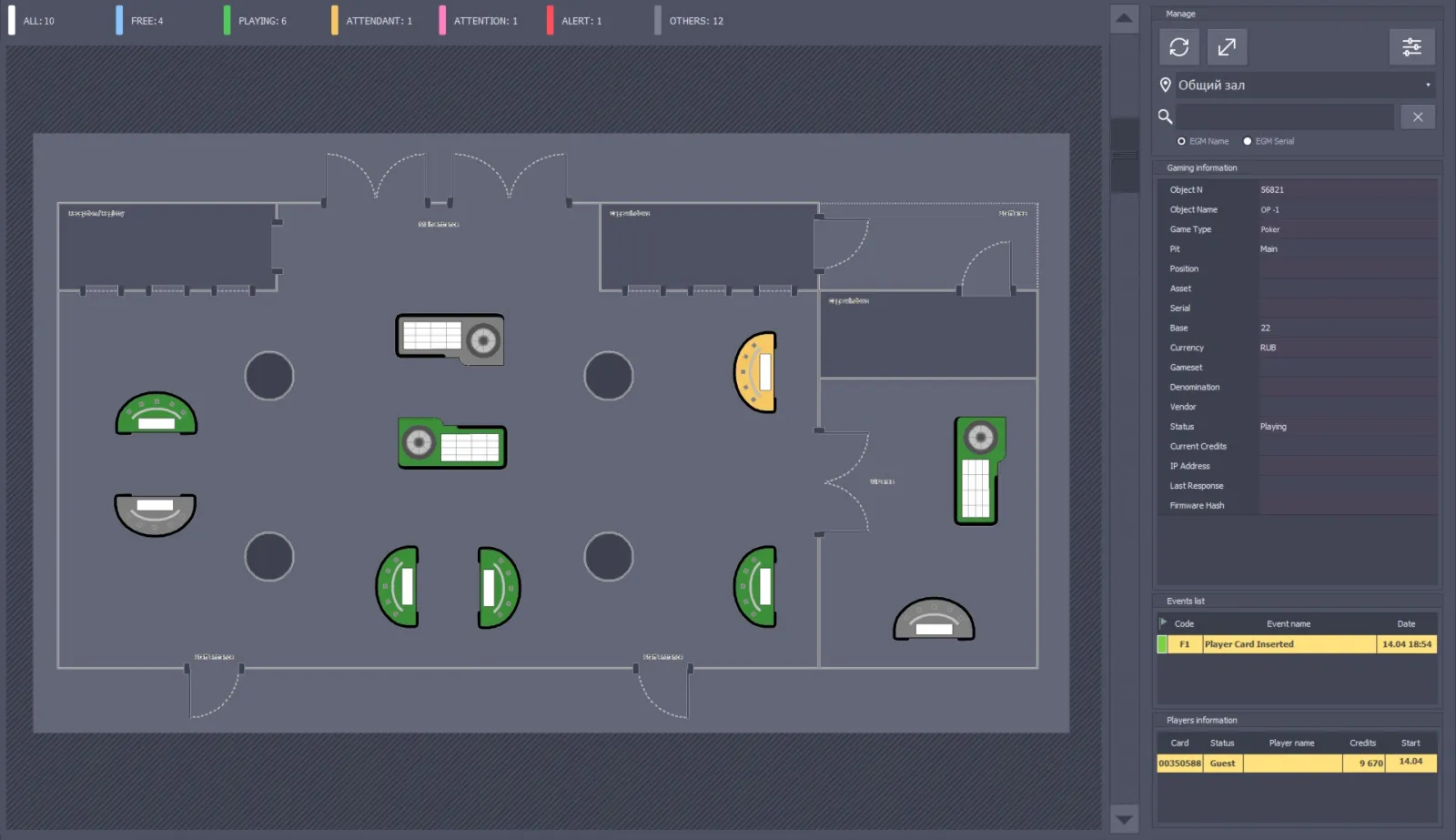
Table Manager interface example from Everest materials
Everest interface example · system materials
Overview

What this module does

Table Manager is the table-area management module shown in Everest Black. The presentation describes it as a coordinated workspace for monitoring both visitor operations at tables and the tables’ own activity and results.

Its three components are Table Live Monitor, Player Tracking and Table Tracking. Table Live Monitor visualizes table activity; Player Tracking registers and displays visitor operations and activity at tables; Table Tracking registers and displays table operations and activity. The CMS description gives more detail for Table Tracking, including hourly and currency-based results with breakdowns by halls, pits and games.

Key functions
  • Table Live Monitor for visual activity
  • Player Tracking for visitor operations at tables
  • Table Tracking for table activity and results
  • Hourly and currency-based analysis
  • Breakdown by hall, pit and game
Inside this module

Three table-management components

Table Live Monitor

See a live visual overview of activity at connected gaming tables. The deck describes this component as a visualization of table activity. The Inspector is the source of operational table updates: opening, check float, fills, credits, dropbox status and game-result records. The live-monitor view helps staff see table activity while the related tracking modules retain the transaction and result details.

Read the detailed description

Player Tracking

Bring a guest’s recorded cash and gaming activity together for casino-wide or individual review. The source materials list Cash In / Out, Chips In / Out, Credit In / Out, Hold, Rolling and Dropbox In. The documented cash result is Cash Out − Cash In − Dropbox In + Credit Out − Credit In. The gaming-session result is Chips Out − Chips In + Dropbox In. The two figures are expected to match when all relevant operations are entered fully and on time. The system is intended to help teams understand their visitor base and support loyalty, return visits, longer machine play and targeted marketing; these are business goals, not guaranteed results.

Read the detailed description

Table Tracking

Calculate hourly and daily table results from opening float, checks, fills, credits and dropbox totals. For an hourly current count, the source gives: Current Check Float − Open Float − Current Total Fills + Current Total Credits + Current Total Dropbox. For the final count it gives: Last Check Float − Open Float − Total Fills + Total Credits + Total Dropbox. The opening float is passed from Inspector after the first opening of the day. A table may be opened and temporarily closed several times in one day; Opener / Closer values are not used in the current-count formula. To keep an hourly result reliable, the current check float should be entered no later than five minutes after the next hour begins. The table currency is configured in Cash Desk and may be changed before the table’s first opening of the gaming day.

Read the detailed description

Gaming Sessions

Inspect the timing, bets and recorded transactions of an individual player’s gaming sessions. Depending on the incoming table and slot data, a session can include Chips In / Out, Dropbox In, rolling, minimum, average and maximum bets, game pace and participation rate. The information is received automatically from the Table Inspector and slot-system modules described in the CMS material. Configured rules can use the collected activity to calculate player points.

Read the detailed description

Game Results

Examine table-game and slot results, including initial float, drop and actual result. The CMS description says this view displays the initial float, drop, actual results and duration for each game. The related Table Tracking views can aggregate table and slot results by currency or hour and break them down by hall, pit and game. Table operation details are automatically received from the Inspector module.

Read the detailed description
Connected workflow

How it fits into Everest

Inspector workstations capture the underlying table operations. The Table Manager components then provide a live view, a visitor-centered view and a table-result view of those records.